
Shopify
How to bulk edit Shopify variant metafields with a CSV
You have a value to set on every variant — a width, a lead time, a supplier code — and it is already in a spreadsheet. Shopify's own product CSV is not the way to get it in. These are the three routes that work, and what each one costs you.
· Ryan Koning
First, check which kind you have
Shopify has two kinds of metafield that look alike in the admin and behave nothing alike in a file. Open Settings → Custom data and see which list your definition is in. A definition under Products belongs to the whole product. One under Variants belongs to a single variant — the row with its own SKU, price and barcode.
The product CSV carries the first kind. Once a product metafield is defined, its column appears in your product export and is read back on import, under a header that names the definition: Fabric (product.metafields.shopify.fabric), or the bare product.metafields.shopify.fabric. Fill the cells, import the file, and the values land.
It does not carry the second. Shopify says so under a heading of its own: variant metafields are not supported for product CSV import or export. On a development store in September 2026 I imported three files that differed only in the spelling of one header, variant.metafields.custom.p6test among them. None of the three wrote a value, all three reported success, and every ordinary column on the same rows landed correctly. There is more on that in why Shopify's CSV import skips your metafields.
So this is not one job with one tool: the route depends on how many rows you have.
Up to about fifty rows: the bulk editor
Shopify's own answer is the variant bulk editor, and for a small job it is a good one. Open a product, select the variants and choose Edit variants: a spreadsheet-like grid opens in the admin. Add the metafield under Columns, type into the cells and save.
Two limits decide whether that is enough. The grid holds fifty variants at a time; on the store I tested it said so in as many words, and asking for more of them in the address bar changed nothing. And saving is all or nothing: one invalid value blocks the whole save, including when the column it is in is not one you can see.
For fifty cells that is a minute's work and no file at all. For five thousand it is not a route.
Thousands of rows: the file
Above that, the shape is the same whichever tool does the writing: export what is there now, edit the file, send it back. Three details bite after the import rather than during it.
Key the file on the variant ID, not on the handle and SKU. Handles and SKUs are what a person reads, and they are not identifiers. On a test store of 5,032 variants, twenty-three had no SKU at all and nine of those shared a handle — so handle plus SKU could not tell them apart. Keep the ID in the first column and the handle and SKU beside it, for reading.
Decide what an empty cell means before you upload. Reading it as “clear this value” and reading it as “leave this one alone” are both defensible, and a tool that does not say which it does will surprise you eventually.
Look at what your spreadsheet wrote. Excel on a Dutch or German computer saves a CSV with semicolons rather than commas, and a long numeric ID can come back in scientific notation. Read the first two lines in a text editor before you upload it.
Three questions to ask before it writes
Ask these of whatever route you take. They are the same three a merchant asks afterwards, when something has gone wrong.
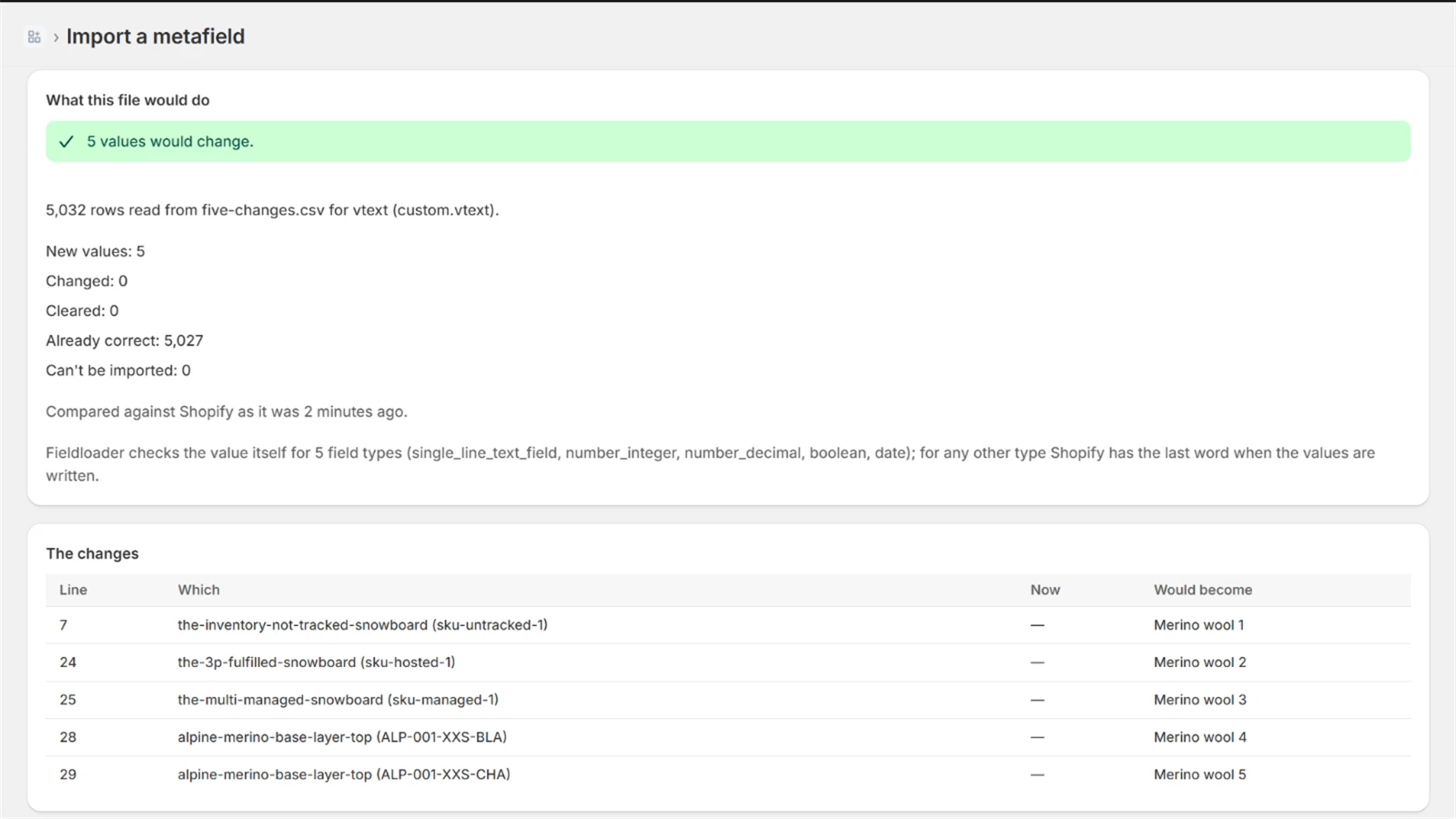
- What would change? Not how many rows are in the file — how many values are new, how many change, how many would be cleared, and how many are already correct.
- Which rows are bad? A row that cannot be imported should be named against its line number, not left out of the count.
- How do I get back? Export the current values before you write the new ones. That file is your undo.
Shopify's own import answers none of the three for a metafield column: on the store I tested, the preview screen listed variant, SKU, weight and price, and no metafield column at all.
If you would rather write code
The Admin GraphQL API has metafieldsSet, which takes up to twenty-five metafields per call and writes each against the ID of the variant that owns it — the same door every app goes through. For a one-off migration a script is an afternoon's work. For “this import again next month” it is not: what you want then is the file, the preview and the way back.
The app I built for the gap
Fifty rows is too few and a script is too much, often enough that I built something for the middle: Fieldloader, on the Shopify App Store. It exports one metafield definition as a CSV with a row for every variant, including the empty ones, takes the edited file back, and shows the diff above before anything is written — new, changed, cleared, already correct, and every bad row against its line number. An import can be undone in one click.
If what you need back is not a value you overwrote but an object somebody deleted, that is a different problem with a different answer: RestoreKit is the one I built for that.
Checked against Shopify's admin and help centre in September 2026. Shopify ships changes weekly, so the bulk editor's limits are worth re-checking if you are reading this much later.